Article
What Is an SSD? A Beginner's Guide to Solid-State Drives
Sammy · October 30, 2026
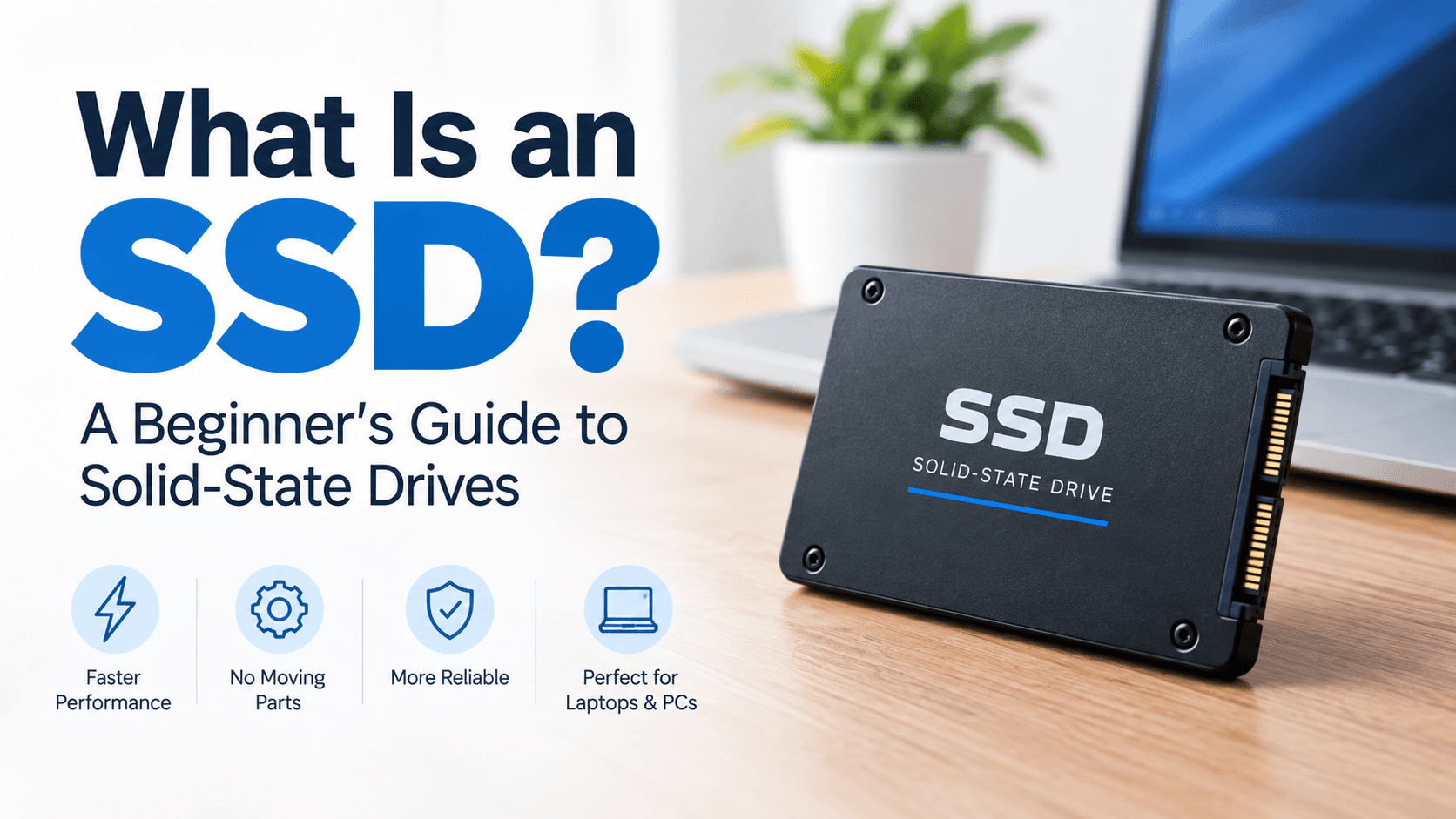
What Is an SSD? A Beginner's Guide to Solid-State Drives
Have you ever wondered why some computers start up in seconds while others take several minutes? One important factor is the type of storage drive they use.
A Solid-State Drive (SSD) is a storage device that saves your operating system, software, documents, photos, videos, games, and other files using flash memory. Unlike a traditional Hard Disk Drive (HDD), an SSD has no moving mechanical parts.
SSDs are popular because they offer fast data access, quick computer startup times, and reliable performance for everyday computing. They are used in laptops, desktop computers, gaming systems, workstations, and portable storage devices.
In this beginner's guide, you will learn what an SSD is, how it works, the different types of SSDs, their advantages and disadvantages, and how to choose the right one for your needs.
What Does SSD Stand For?
SSD stands for Solid-State Drive.
The word solid-state refers to electronic components that operate without the moving mechanical parts found in traditional hard drives.
An SSD stores data in flash memory chips. These chips retain information even when the computer is switched off.
For example, when you save a document to your SSD, the document remains stored there after you shut down your computer. You can open it again the next time you turn the computer on.
An SSD can store:
- Operating systems such as Windows and Linux.
- Applications and software.
- Documents, spreadsheets, and presentations.
- Photos, videos, and music.
- Computer games.
- Business files and databases.
- Backups and other digital information.
SSDs come in different capacities, speeds, physical sizes, and connection types. Understanding these differences will help you select a drive that suits your computer.
How Does an SSD Work?
An SSD stores information in electronic memory cells within NAND flash memory chips.
When you save a file, the SSD's controller manages how the information is written to the memory cells. When you open the file later, the controller retrieves the stored information and makes it available to your computer.
This process happens electronically rather than relying on moving mechanical components.
Here is a simplified explanation of how an SSD works:
1. You save a file. When you save a photo, document, or application, your computer sends the data to the SSD.
2. The SSD controller processes the data. The controller manages where information is stored and how the drive operates.
3. The data is written to flash memory. The SSD stores the information in its memory cells.
4. You open the file later. The controller retrieves the required information and sends it back to your computer.
Because an SSD does not need to move a read/write head across a spinning disk, it can access data much faster than many traditional HDDs.
However, not every SSD has the same performance. Its controller, flash memory, interface, firmware, and workload all affect how quickly it can read and write data.
What Are the Main Components of an SSD?
Although SSDs come in different designs, several important components help them store and retrieve data.
1. NAND Flash Memory
NAND flash memory is where an SSD stores your files and other information.
It retains data without continuous electrical power. This makes it suitable for long-term storage, although data retention can be affected by factors such as temperature, wear, and how long a drive remains unpowered.
Different types of NAND flash memory offer different combinations of cost, performance, capacity, and endurance.
2. SSD Controller
The controller is the electronic component responsible for managing the drive's operations.
It coordinates data reading and writing, error correction, memory management, and other functions needed for reliable performance.
The controller is one reason two SSDs with similar specifications may perform differently.
3. DRAM Cache or Other Memory Management
Some SSDs contain dedicated DRAM, which can help the drive manage its mapping information efficiently.
Other SSDs operate without dedicated DRAM and may use alternatives such as Host Memory Buffer (HMB), where supported, or other controller strategies.
A DRAM-less SSD is not automatically a bad choice. The best option depends on the drive's design, workload, price, and intended use.
4. Firmware
Firmware is the built-in software that controls how the SSD operates.
It helps manage tasks such as data placement, error correction, wear leveling, and communication with the computer.
Manufacturers sometimes release firmware updates to address bugs, improve compatibility, or resolve other issues.
What Are the Different Types of SSDs?
SSDs can be classified by their physical form factor, connection interface, or storage technology. Understanding the distinction is important when buying a replacement or upgrading a computer.
1. SATA SSD
A SATA SSD uses the SATA interface, which is also commonly used by traditional internal hard drives.
Many SATA SSDs use a 2.5-inch form factor, making them suitable replacements for compatible laptop and desktop HDDs.
SATA SSDs are generally much faster at everyday tasks than traditional mechanical HDDs. Their maximum interface throughput is lower than that of modern NVMe SSDs, but they remain useful for many computers.
2. M.2 SSD
M.2 describes a physical form factor rather than a particular storage protocol.
M.2 drives are compact and commonly installed directly into a compatible slot on a laptop or motherboard.
Importantly, an M.2 SSD can use either the SATA interface or PCIe with NVMe, depending on the drive and the device's supported connections.
Therefore, not every M.2 SSD is an NVMe SSD.
Always check the manufacturer's compatibility specifications before buying an M.2 drive.
3. NVMe SSD
NVMe stands for Non-Volatile Memory Express.
It is a storage protocol designed for non-volatile memory, commonly used by SSDs connected through PCIe.
NVMe SSDs can deliver substantially higher throughput and lower latency than SATA SSDs, particularly in workloads that benefit from faster storage access.
They are popular in modern laptops, desktop computers, gaming PCs, and professional workstations.
4. External SSD
An external SSD is a storage drive housed in an enclosure and connected to a computer or another compatible device through an external interface, commonly USB.
External SSDs are useful for:
- Transferring large files between computers.
- Backing up important documents and photos.
- Storing video projects.
- Expanding available storage.
- Carrying files while travelling.
Actual performance depends on the SSD, enclosure, cable, connection interface, and host device.
SSD vs. HDD: What Is the Difference?
The main difference is how the two storage devices store and access information.
A traditional HDD uses spinning magnetic platters and a moving read/write head. An SSD uses electronic flash memory.
Feature
SSD
HDD
Storage technology
NAND flash memory
Magnetic platters
Moving parts
None
Mechanical moving parts
Startup and file access
Generally faster
Generally slower
Noise
Silent during normal operation
May produce mechanical noise
Resistance to physical shock
Generally better
More vulnerable to mechanical shock
Price per gigabyte
Generally higher
Generally lower
Large-capacity storage
Available, often at a higher cost
Often more economical
Power consumption
Often lower, depending on workload
Often higher, depending on model
Best suited for
Fast system storage and responsive computing
Economical high-capacity storage
Neither type is best for every situation.
An SSD is usually the better choice when speed and responsiveness matter. An HDD can be a practical option when you need large amounts of storage at a lower cost.
Some computers use both: an SSD for the operating system and applications, and an HDD for large files and archives.
For a more detailed comparison, see our guide to SSD vs. HDD: What's the Difference?
What Are the Advantages of an SSD?
SSDs offer several benefits that make them attractive for modern computers.
1. Faster Computer Startup
An SSD can significantly reduce the time required to start an operating system compared with a traditional HDD, although the exact improvement depends on the computer and its configuration.
2. Faster Application Loading
Applications installed on an SSD can often launch more quickly because the drive retrieves the necessary data faster.
This can make everyday activities such as opening a browser, working with documents, and launching software feel more responsive.
3. Quicker File Transfers
SSDs can transfer files faster than many HDDs, particularly when working with large files or workloads that benefit from high storage throughput.
Actual transfer speeds depend on the source and destination drives, file sizes, connection interfaces, and other system limitations.
4. No Mechanical Moving Parts
Because SSDs do not use spinning platters or moving read/write heads, they avoid the mechanical wear associated with those components.
However, SSDs can still fail because of electronic faults, controller problems, memory wear, firmware issues, or other causes.
5. Quiet Operation
SSDs operate silently during normal use because they have no spinning disks or moving heads.
This can be useful in quiet offices, bedrooms, libraries, and recording environments.
6. Improved Resistance to Physical Shock
SSDs generally tolerate everyday movement and physical shock better than mechanical HDDs because they lack delicate moving components.
They are not indestructible, however. Dropping a device or exposing it to extreme conditions can still damage an SSD or the computer it is installed in.
7. Potentially Lower Power Consumption
Many SSDs consume less power than comparable HDDs in some operating conditions. This can help with energy efficiency and battery life, although the overall effect depends on the particular drives and computer.
What Are the Disadvantages of an SSD?
Despite their advantages, SSDs have limitations worth considering before making a purchase.
1. Higher Cost per Gigabyte
SSDs generally cost more per gigabyte than HDDs, especially when comparing large storage capacities.
If your primary requirement is economical storage for a large media collection or archive, an HDD may offer better value.
2. Limited Write Endurance
NAND flash memory cells can only withstand a finite number of program-and-erase cycles.
Manufacturers specify endurance ratings for many SSDs, often expressed in Terabytes Written (TBW). This indicates the amount of data that can be written under the manufacturer's specified conditions.
Modern SSDs can last for many years in ordinary workloads, but their endurance varies by model and usage.
3. Data Recovery Can Be Difficult
Recovering information from a damaged SSD can be challenging, particularly when the controller fails, encryption is involved, or deleted data has been affected by TRIM.
Important files should always be backed up rather than relying on the possibility of recovering them after a failure.
4. Compatibility Requirements
Not every SSD works with every computer.
A device may support only certain physical sizes, interfaces, protocols, or storage capacities. A physically compatible drive may still be electrically or logically incompatible.
Check the computer manufacturer's specifications before purchasing an upgrade.
5. Performance Varies by Model
Two SSDs may advertise very different speeds and endurance ratings.
Some lower-cost drives may also experience reduced write performance after their cache fills during large transfers.
Choosing the right SSD requires more than looking at the highest advertised speed.
How Much SSD Storage Do You Need?
The right capacity depends on what you store and how you use your computer.
SSD capacity
Suitable uses
256GB
Basic computing, web browsing, documents, and lighter applications
512GB
Everyday computing, schoolwork, office tasks, and a moderate number of applications
1TB
Gaming, larger software collections, photos, videos, and general-purpose use
2TB
Large game libraries, creative projects, extensive media collections, and heavier workloads
4TB or more
Large professional projects, extensive media libraries, and storage-intensive applications
These are general guidelines rather than strict limits. Operating systems, applications, games, and media files vary considerably in size.
Also remember that advertised capacity and the capacity displayed by your operating system may differ because of unit conversion and formatting.
Before choosing a drive, consider your current storage usage, expected future needs, budget, and whether your computer supports the desired capacity.
For further guidance, read our article on How Much SSD Storage Do You Really Need?
How to Choose the Right SSD
If you are buying your first SSD or upgrading an existing drive, consider these factors.
Step 1: Check Compatibility
Identify the storage interface, physical form factor, and supported drive types for your computer.
Consult your laptop manufacturer's documentation or your desktop motherboard specifications.
Step 2: Choose the Right Capacity
Estimate how much space your operating system, applications, games, and files require.
If your budget permits, buying sufficient capacity now may help you avoid another upgrade soon.
Step 3: Compare Performance
Look at sequential read and write speeds, random performance where relevant, and independent testing for the workloads you care about.
Do not assume the SSD with the highest advertised speed will always provide the best everyday experience.
Step 4: Check Endurance and Warranty
Compare the manufacturer's TBW rating, warranty period, and any applicable warranty conditions.
A longer warranty or higher endurance rating can be useful, but neither guarantees that a drive will never fail.
Step 5: Compare Price and Value
Compare the total price, price per terabyte, performance, capacity, and features.
Choose a drive that meets your needs rather than paying for performance your computer cannot use.
You can explore our SSD comparison resources to evaluate available storage options.
How Long Does an SSD Last?
There is no single lifespan that applies to every SSD.
An SSD may continue working for many years, but its longevity depends on factors such as its design, write workload, operating temperature, power conditions, and manufacturing quality.
Manufacturers often publish endurance ratings and warranty terms that help buyers understand a drive's intended operating limits.
You can monitor supported SSD health information using tools such as the manufacturer's software or compatible SMART monitoring utilities. Keep in mind that health estimates do not predict every possible failure.
To protect your data:
- Back up important files regularly.
- Keep the SSD within its recommended operating temperature.
- Install firmware updates when appropriate and follow the manufacturer's instructions.
- Monitor reported health warnings.
- Replace a drive when necessary, especially if it shows signs of failure.
For more information, see How to Check SSD Health in Windows and How Long Does an SSD Last?
Frequently Asked Questions About SSDs
1. Is an SSD better than an HDD?
An SSD is generally better for speed, responsiveness, and resistance to physical shock. An HDD can be more economical for large amounts of storage. The best choice depends on your budget and requirements.
2. Can an SSD make an old computer faster?
Yes, installing an SSD in a compatible computer that currently uses a mechanical HDD can noticeably improve startup times, application loading, and general responsiveness.
However, an SSD will not automatically solve every performance problem. Insufficient RAM, an older processor, overheating, and software issues can still affect performance.
3. Is 256GB SSD enough for a laptop?
A 256GB SSD may be sufficient for web browsing, documents, schoolwork, and lighter applications. It may feel restrictive if you install many games, large applications, or store substantial amounts of video and photo content.
4. Do SSDs need maintenance?
SSDs generally require little routine maintenance. Keep backups, monitor drive health, maintain suitable operating conditions, and follow manufacturer recommendations for firmware updates.
Avoid routine manual defragmentation as a general SSD maintenance practice. Modern operating systems manage storage optimization differently, including appropriate TRIM operations.
5. Can an SSD lose data?
Yes. SSDs can lose data because of device failure, accidental deletion, corruption, or other problems. Data retention can also be affected by how long a drive remains unpowered and by its condition.
Maintain separate backups of important files.
6. Can I replace my laptop HDD with an SSD?
Often, yes, provided the laptop supports a compatible replacement drive. Check its physical size, interface, and other manufacturer requirements before purchasing.
You can then migrate your existing system using a suitable cloning method or install the operating system afresh.
7. Are all NVMe SSDs faster than SATA SSDs?
NVMe SSDs generally offer higher performance potential because they use PCIe rather than SATA. However, actual performance varies by model and workload, and an NVMe drive's benefits may be limited by the computer or application.
8. Does an SSD need to be defragmented?
Traditional manual defragmentation is generally unnecessary for SSDs. Let your operating system handle its supported storage optimization tasks rather than applying HDD maintenance routines indiscriminately.
Final Thoughts
A Solid-State Drive is a storage device that uses flash memory to store data electronically. Compared with a traditional mechanical HDD, an SSD can offer faster access to files, quicker startup times, quieter operation, and improved resistance to physical shock.
SSDs are available in several form factors and interfaces, including 2.5-inch SATA, M.2 SATA, M.2 NVMe, and external USB-connected designs. The right choice depends on compatibility, capacity, performance, endurance, and budget.
Whether you want to upgrade an older laptop, build a gaming PC, improve a work computer, or expand your storage, understanding SSD fundamentals will help you make a more informed decision.
Ready to choose your next storage drive? Explore SSDExpertZone's comparison resources to compare storage capacities, specifications, and available SSD options before buying.
About SSDExpertZone: SSDExpertZone helps readers understand storage technology, compare SSD options, troubleshoot common problems, and make informed storage decisions.
Read more